

AI Integration Quick Reference
AI Integration Quick Reference
| Field | Value |
|---|---|
| Package | CometChatUIKitSwift |
| Version | 5.1.9 |
| Requirements | Xcode 16+, iOS 13.0+, Swift 5.0+ |
| Init | CometChatUIKit.init(uiKitSettings:) — must complete before login() |
| Login | CometChatUIKit.login(uid:) — must complete before rendering components |
| Order | init() → login() → render. Breaking this order = blank screen |
| Auth Key | Dev/testing only. Use Auth Token in production |
| Calling | Optional. Install CometChatCallsSDK 4.2.2 to enable |
| Dependencies | CometChatSDK 4.1.0 (installed automatically) |
Prerequisites
You need three things from the CometChat Dashboard:| Credential | Where to find it |
|---|---|
| App ID | Dashboard → Your App → Credentials |
| Auth Key | Dashboard → Your App → Credentials |
| Region | Dashboard → Your App → Credentials (e.g. us, eu, in) |
- Xcode 16 or later
- iOS device or simulator running iOS 13.0+
- Swift 5.0+
- macOS
Step 1 — Create an iOS Project
Open Xcode and create a new project:- Select iOS App in the template picker and click Next
- Enter your project name and bundle identifier
- Select Storyboard for Interface
- Select Swift for Language
Step 2 — Install the UI Kit
- CocoaPods
- Swift Package Manager
- Create a Podfile in your project root:
- Add CometChat to your Podfile:
Podfile
- Install dependencies:
- Close the
.xcodeprojfile and open the.xcworkspacefile instead. CocoaPods creates a workspace that includes your project and the installed pods.
Step 3 — Configure Permissions
Add these keys to yourInfo.plist for media messaging:
Info.plist

- Select your project in the Navigator
- Select your app target
- Go to Build Settings tab
- Search for “User Script Sandboxing”
- Set it to No

Step 4 — Initialize & Login
Add this to yourSceneDelegate.swift. Init must complete before login, and login must complete before rendering any UI.
SceneDelegate.swift
cometchat-uid-1 · cometchat-uid-2 · cometchat-uid-3 · cometchat-uid-4 · cometchat-uid-5
Or create new users via the CometChat Dashboard, SDK method, or REST API.
After running the app, you should see:
For production, use
loginWithAuthToken() instead of Auth Key. Generate tokens server-side via the REST API.Step 5 — Choose a Chat Experience
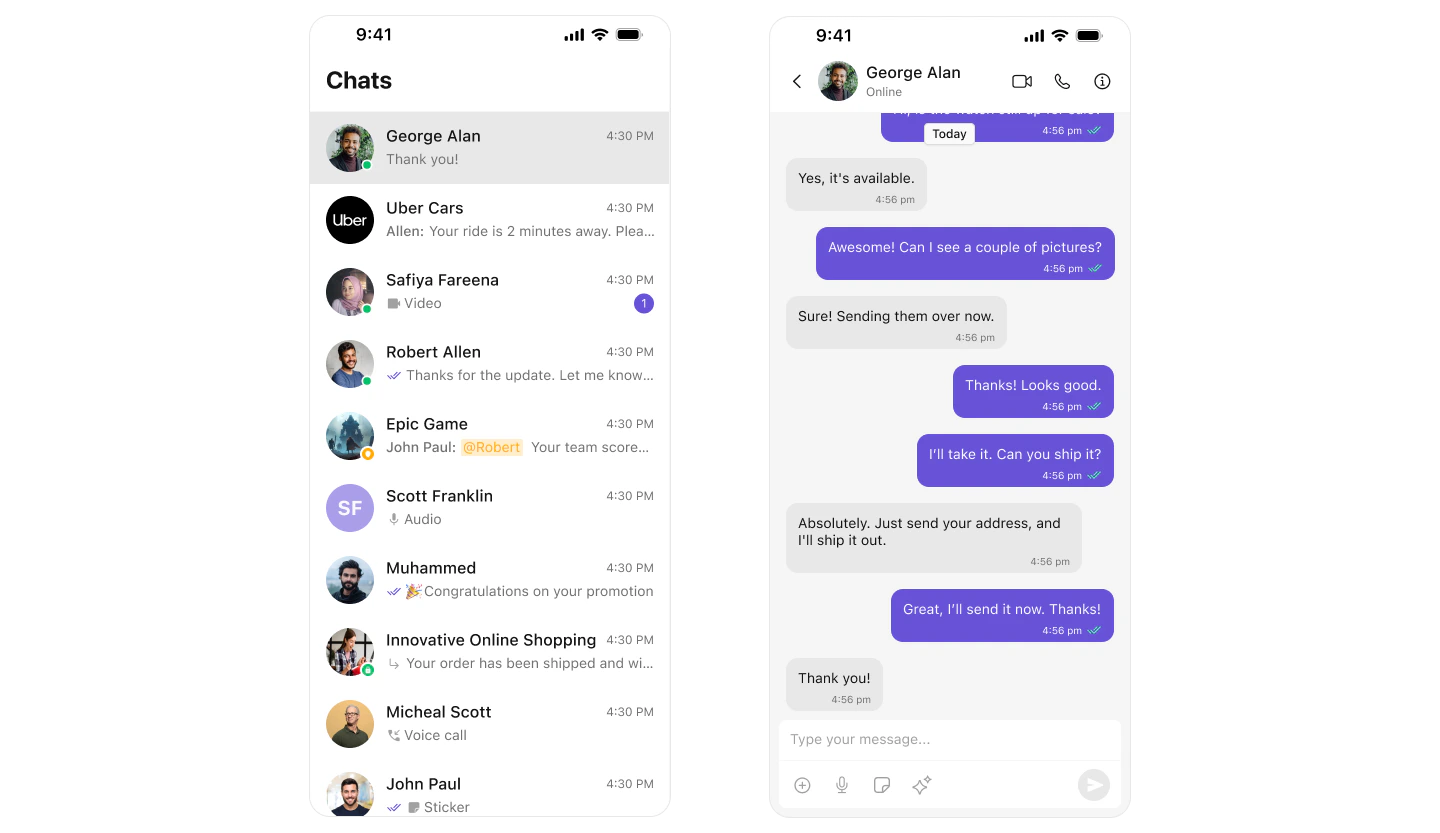
Integrate a conversation view that suits your app’s UX. Each option below includes a step-by-step guide.Conversation List + Message View
Two-panel layout — conversation list with push navigation to messages. Think iMessage or WhatsApp.- Push-based navigation between conversations and messages
- Supports one-to-one and group chats
- Real-time sync with CometChat event listeners
- Session-aware — message states persist across app sessions
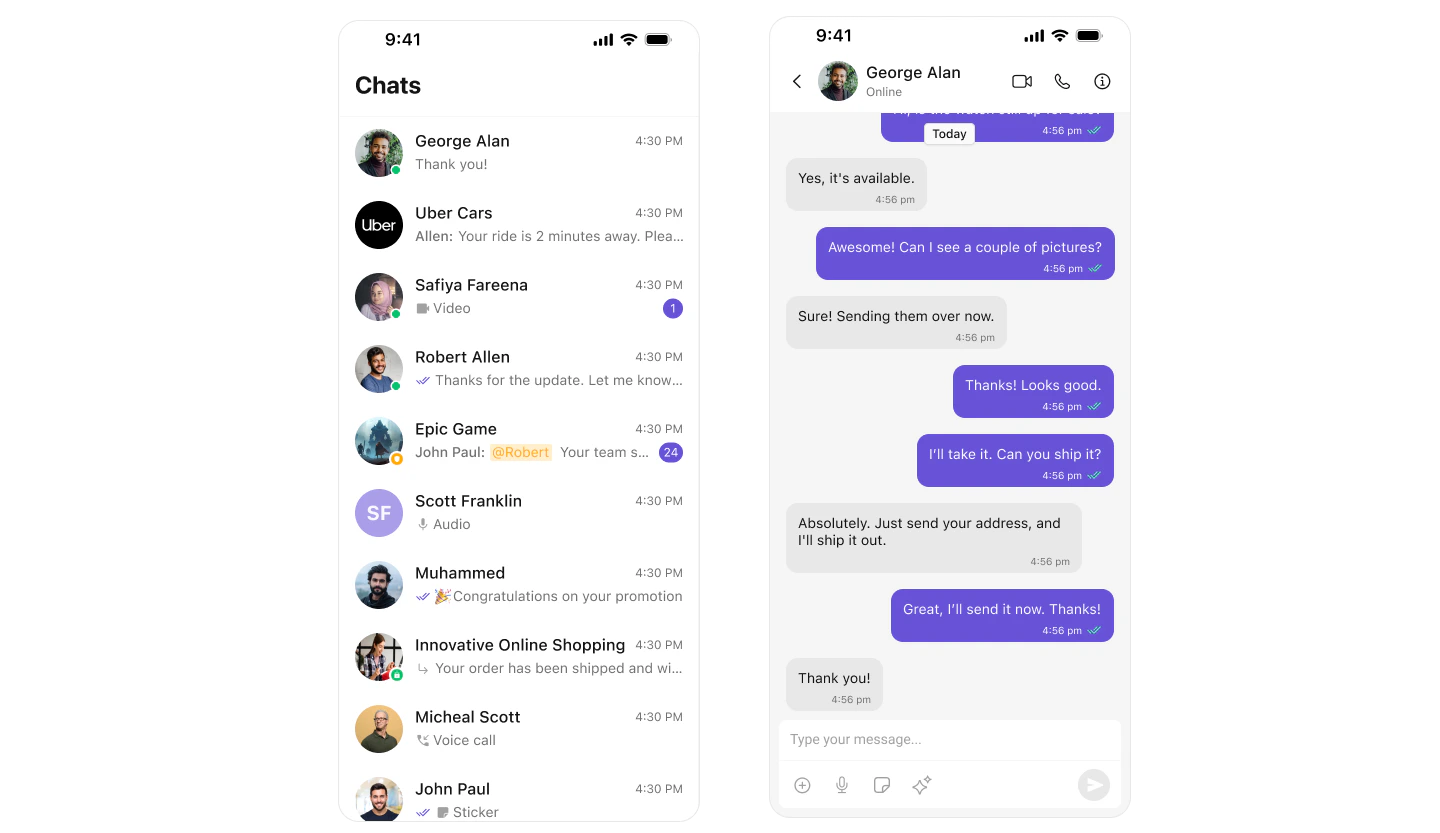
Build Conversation List + Message View
Step-by-step guide to build this layout
One-to-One / Group Chat
Single chat window — no sidebar. Good for support chat, contextual messaging, or focused conversations.- Dedicated chat window for one-on-one or group messaging
- No conversation list — users go directly into the chat
- Full-screen experience optimized for mobile
- Ideal for support workflows, community replies, or invitations
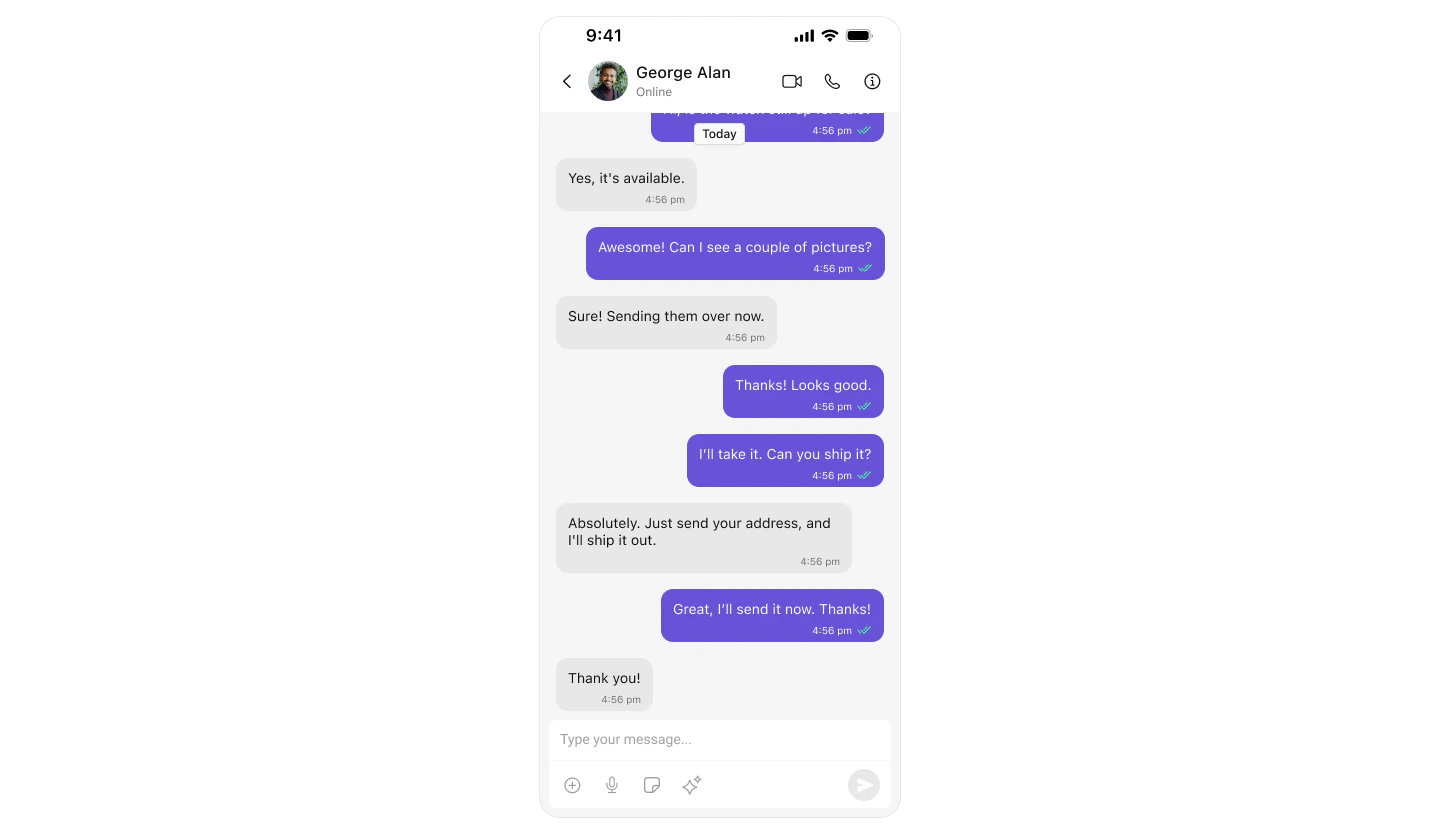
Build One-to-One / Group Chat
Step-by-step guide to build this layout
Tab-Based Chat
Tabbed navigation — Chats, Calls, Users, Groups in separate tabs. Good for full-featured apps.- UITabBarController or SwiftUI TabView navigation
- Full-screen messaging within each tab
- Modular UI — isolated controllers for each tab
- Scales well for adding future features like notifications or settings
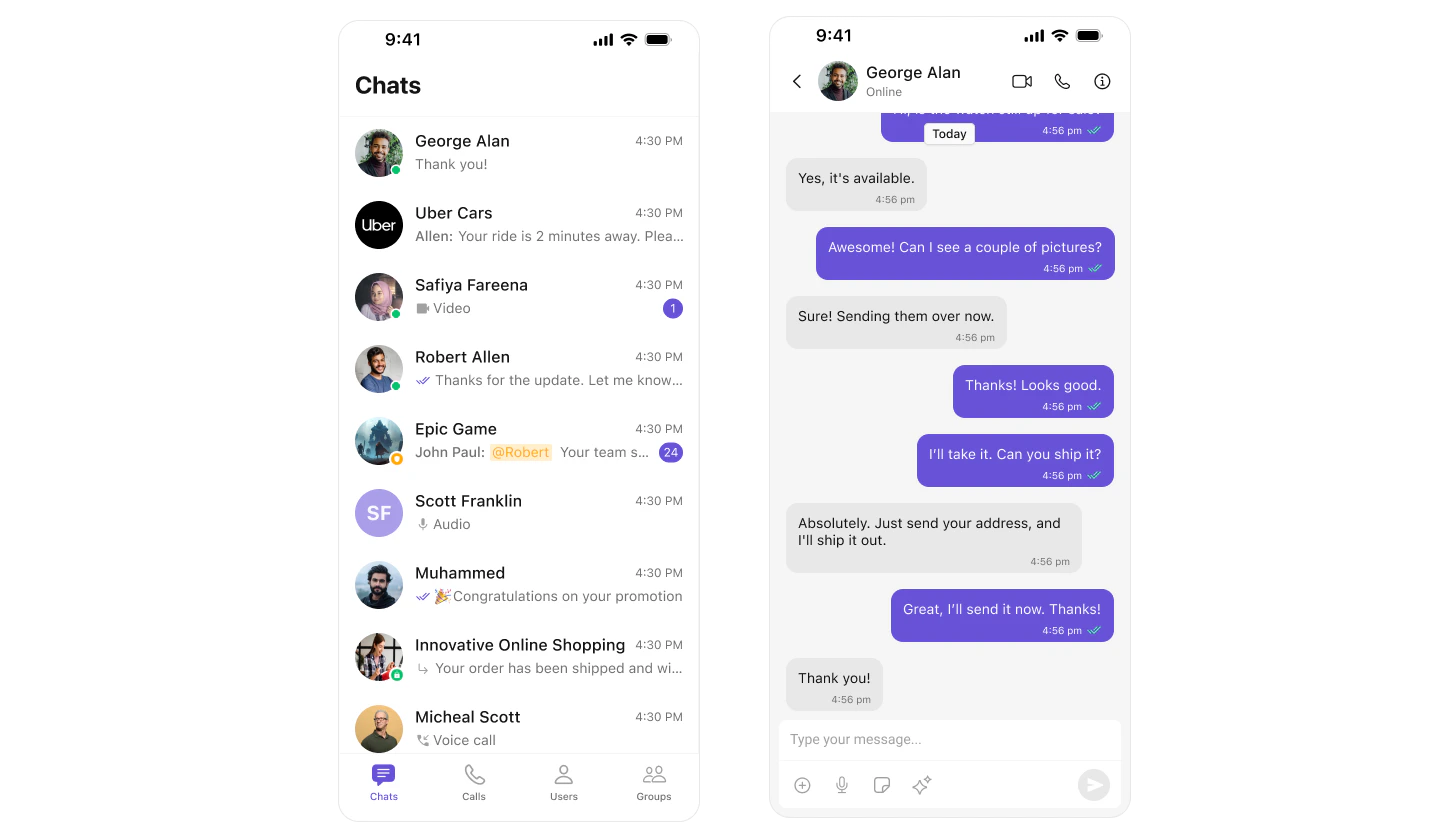
Build Tab-Based Chat
Step-by-step guide to build this layout
Build Your Own Chat Experience
Need full control over the UI? Use individual components, customize themes, and wire up your own layouts.- Sample App — Working reference app to compare against
- Components — All prebuilt UI elements with customization options
- Core Features — Messaging, real-time updates, and other capabilities
- Theming — Colors, fonts, dark mode, and custom styling
- Build Your Own UI — Skip the UI Kit entirely and build on the raw SDK
Next Steps
Components Overview
Browse all prebuilt UI components
Theming
Customize colors, fonts, and styles
Core Features
Chat features included out of the box
Methods
SDK methods and API reference