

AI Integration Quick Reference
AI Integration Quick Reference
| Field | Value |
|---|---|
| Package | CometChatUIKitSwift |
| Framework | UIKit / SwiftUI |
| Components | CometChatMessageHeader, CometChatMessageList, CometChatMessageComposer |
| Layout | Single chat window — no sidebar, no conversation list |
| Prerequisite | Complete iOS Integration Steps 1–4 first |
| Pattern | Support chat, embedded widgets, focused messaging |
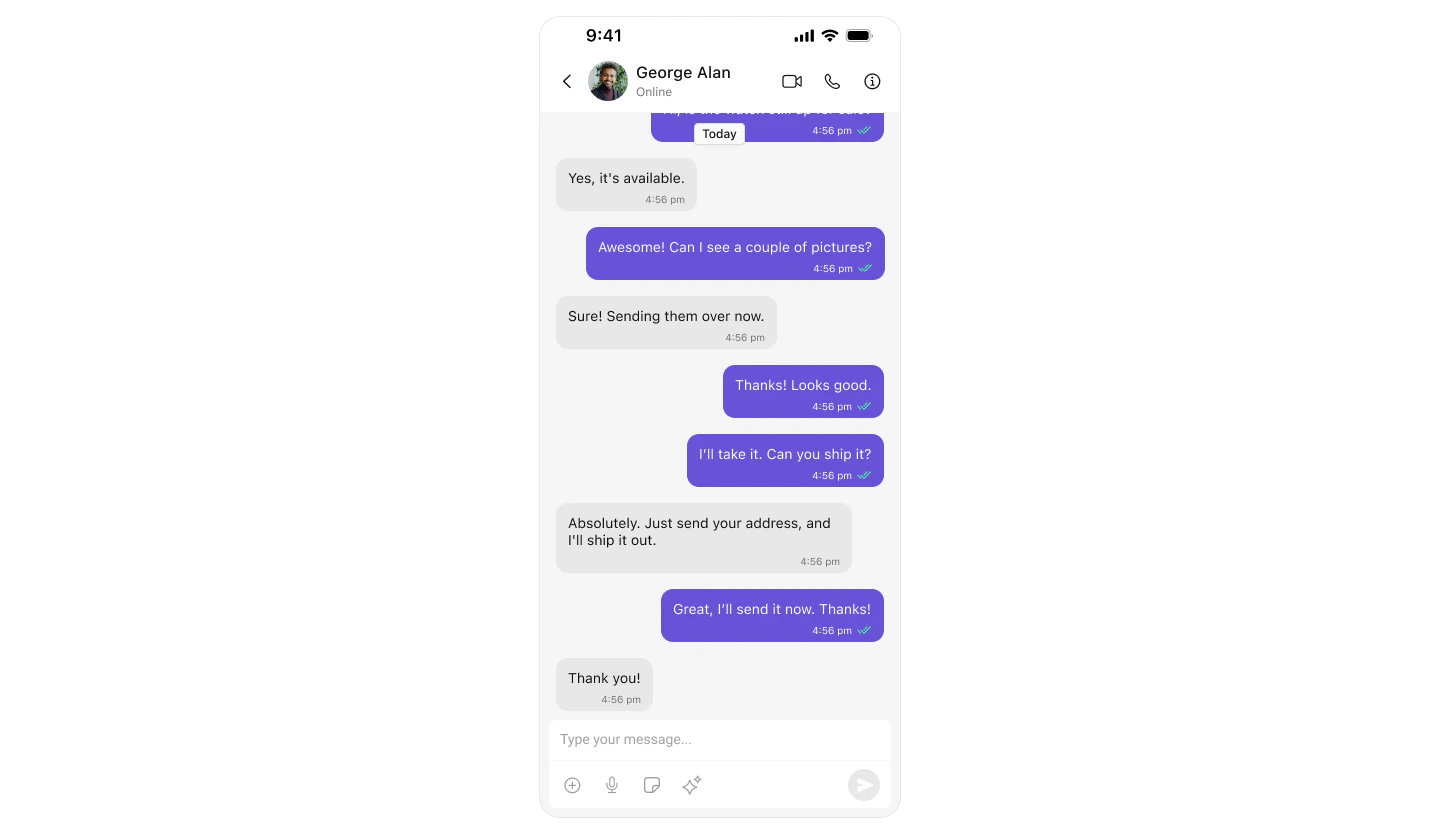
What You’re Building
Three components stacked vertically:- Chat header — displays recipient name, avatar, online status, and optional call buttons
- Message list — real-time chat history with scrolling
- Message composer — text input with media, emojis, and reactions
Step 1 — Setup SceneDelegate
Fetch the user (or group) after login and launch directly into the messages view.SceneDelegate.swift
CometChat.getUser(UID:)fetches the user object from the SDK — you need a real user object, not a manually constructed one.- The highlighted lines show where to set the credentials and the UID of the user to chat with.
Switching Between User and Group Chat
To load a group chat instead of one-to-one, replacegetUser with getGroup:
Step 2 — Create MessagesVC
Create a new Swift file for the messages view controller:- In Xcode, right-click your project folder in the Navigator
- Select New File…
- Choose Swift File and click Next
- Name it
MessagesVC.swiftand click Create
MessagesVC.swift
CometChatMessageHeadershows user/group info and back buttonCometChatMessageListdisplays messages with real-time updatesCometChatMessageComposerhandles text input, media, and reactions- Pass either
userorgroupto each component, never both
Step 3 — Run the Project
Build and run in Xcode. You should see the chat window load directly with the conversation for the UID you set.Next Steps
Theming
Customize colors, fonts, and styles to match your brand
Components Overview
Browse all prebuilt UI components
iOS Integration
Back to the main setup guide
Core Features
Chat features included out of the box